Getting started
ClipTrail keeps a searchable history of everything you copy, sorts it by type, and pastes it back with a keystroke. This page gets you from download to your first paste in a couple of minutes.
Alpha. v0.1.2 is the first release. Windows and Android are the main targets, Linux is supported, and macOS is experimental. Get the installers on the download page, or build from source.
1. Install
Get the installer for your system from the Download page.
- Windows: run the
-setup.exe. It installs for your user only, without admin rights. Because the build isn't code-signed yet, SmartScreen asks first: click More info → Run anyway. - Linux: install the
.debwithsudo apt install ./ClipTrail_*.deb, or make the AppImage executable and run it. See install notes for Wayland. - macOS: experimental. Open the
.dmg, drag ClipTrail to Applications, then on first launch open System Settings → Privacy & Security → Open Anyway (the build isn't notarized; if macOS calls it "damaged", runxattr -dr com.apple.quarantine /Applications/ClipTrail.app). ClipTrail lives in the menu bar; the picker opens with Cmd Shift Space. To let it paste for you, allow it once under Privacy & Security → Accessibility.
2. First run
ClipTrail starts in the system tray (the notification area on Windows) and the dashboard opens. From now on, every copy you make is saved:
- Copy a few things as you normally would: a link from your browser, a snippet of code, a colour from a design tool, a screenshot.
- Watch them appear in the dashboard timeline under Today, each with an icon for its kind (link, code, colour, image…) and the app it came from.
- Turn on "Start with Windows" (or "Start at login") in the tray menu or Settings so capture is always running.
3. Paste from the picker
Click into any text field in any app, then:
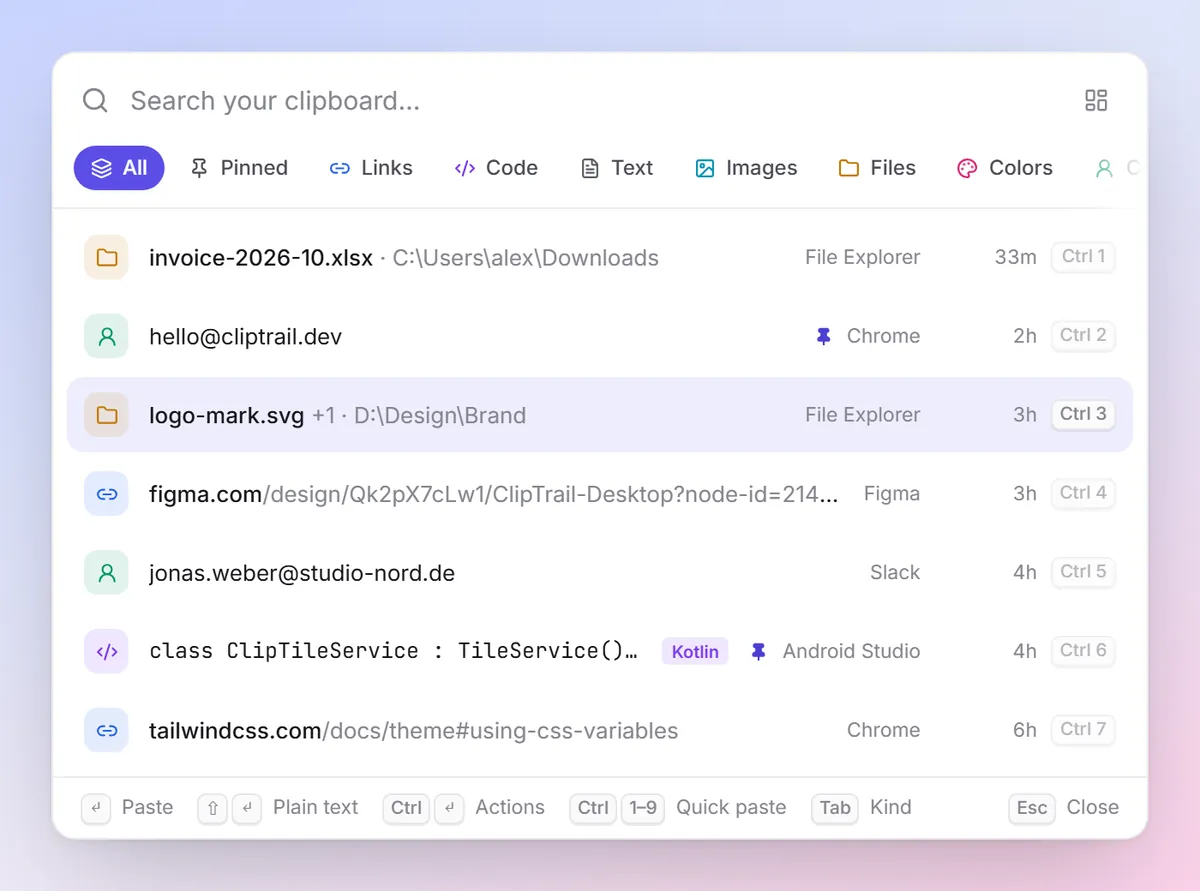
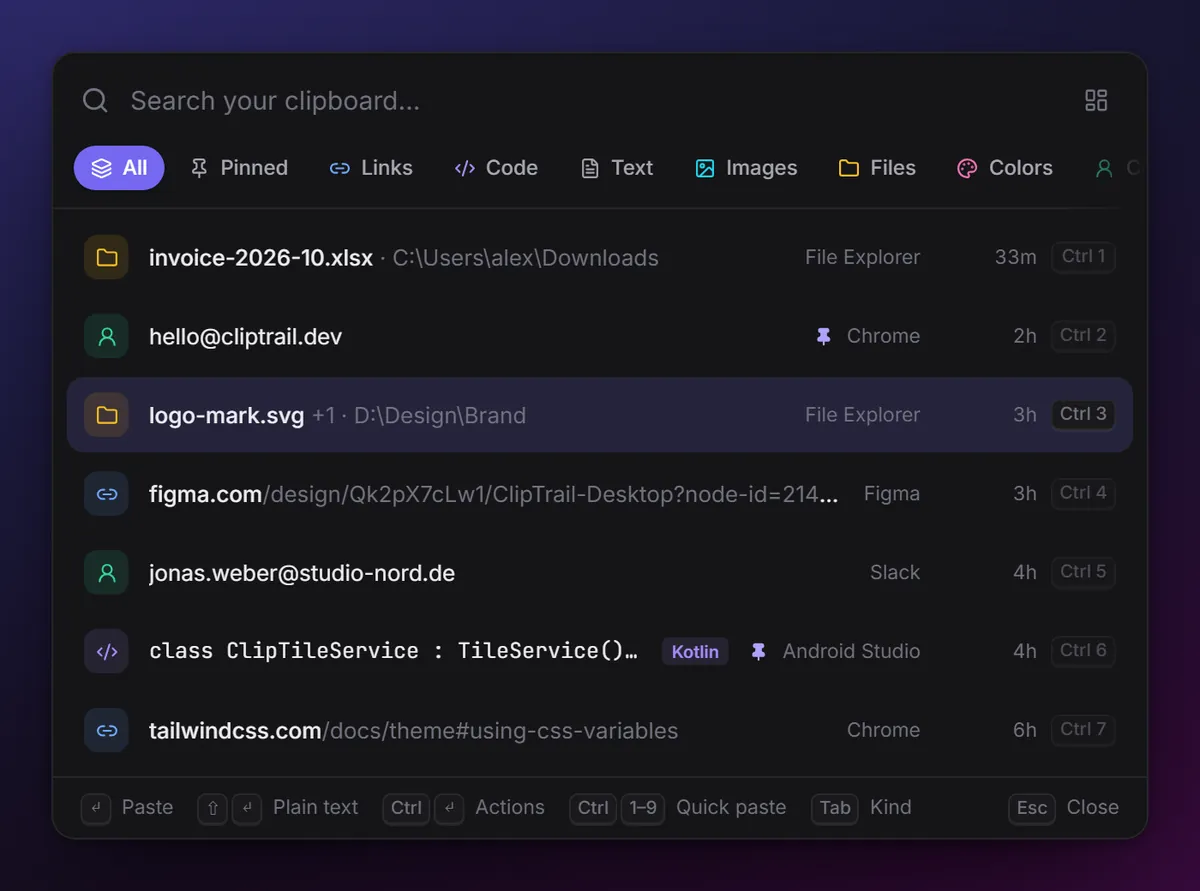
- Press Ctrl Shift Space. The quick picker opens over your current window.
- Type a few letters to search, or use ↑ ↓. Tab switches between kinds.
- Press Enter. The picker closes and the clip is pasted into the app you were in. Shift Enter pastes it as plain text.
More in The quick picker & paste-back.
4. The dashboard
Open it from the tray, with Ctrl Alt H, or with Ctrl D from the picker.
- Sidebar: all clips, pinned clips, each kind with its count, and the apps you copy from most.
- Heatmap and timeline: the last 16 weeks at a glance; click a day to jump there. Clips are grouped by day.
- Preview pane: the selected clip in full, with Copy, Copy as plain text, smart actions, pin and delete.
Press ? in the dashboard to see every shortcut, or read Keyboard shortcuts.
5. Next steps
Build from source
Until installers are published, or if you'd rather build it yourself. You need Rust 1.96 (the repo pins it in rust-toolchain.toml, so rustup picks it up automatically), Node 22 and pnpm.
- Windows: the Microsoft C++ build tools ("Desktop development with C++").
- Linux: the Tauri system packages, for example on Ubuntu:
sudo apt install libwebkit2gtk-4.1-dev libappindicator3-dev librsvg2-dev patchelf libxdo-dev libssl-dev libxcb1-devDesktop app
git clone https://github.com/abhijitdalal26/cliptrail
cd cliptrail/apps/desktop
pnpm install
pnpm tauri dev      # run it
pnpm tauri build    # or build installers into target/release/bundle
Command-line tool
cargo install --locked --git https://github.com/abhijitdalal26/cliptrail clipd-cliThat installs the clipd binary. See the command-line reference.
Want a throwaway history while you experiment? Set CLIPTRAIL_DATA_DIR to an empty folder before starting the app or CLI. See Data, backup & uninstall.