Sync your devices
Pair a phone or another computer and they share one clipboard history: copy on one, find it on the others. Everything is end-to-end encrypted and stays on your own network. No account, no cloud.
Sync is optional. Every ClipTrail app is fully useful on its own. Pair devices only if you have more than one. Pair your phone with the Android app, or another computer with the desktop app.
How it works
- One computer is the hub. The desktop app runs a small sync service on your local network. Other devices (your phone, another computer) connect to it as clients.
- Every device keeps its full history. When you copy something, it's sealed (encrypted) on that device, sent to the hub, and passed on to every other paired device, which adds it to its own history.
- Same network. Devices sync while they're on the same Wi-Fi or LAN as the hub. Changes made while apart are queued and catch up when they meet again.
- History, not clipboard. A clip from another device appears in your timeline and picker; it doesn't silently replace what's on your clipboard. Pick it to paste it.
Before you start
- Both devices are on the same Wi-Fi or LAN. Guest networks and some public or office networks block devices from talking to each other.
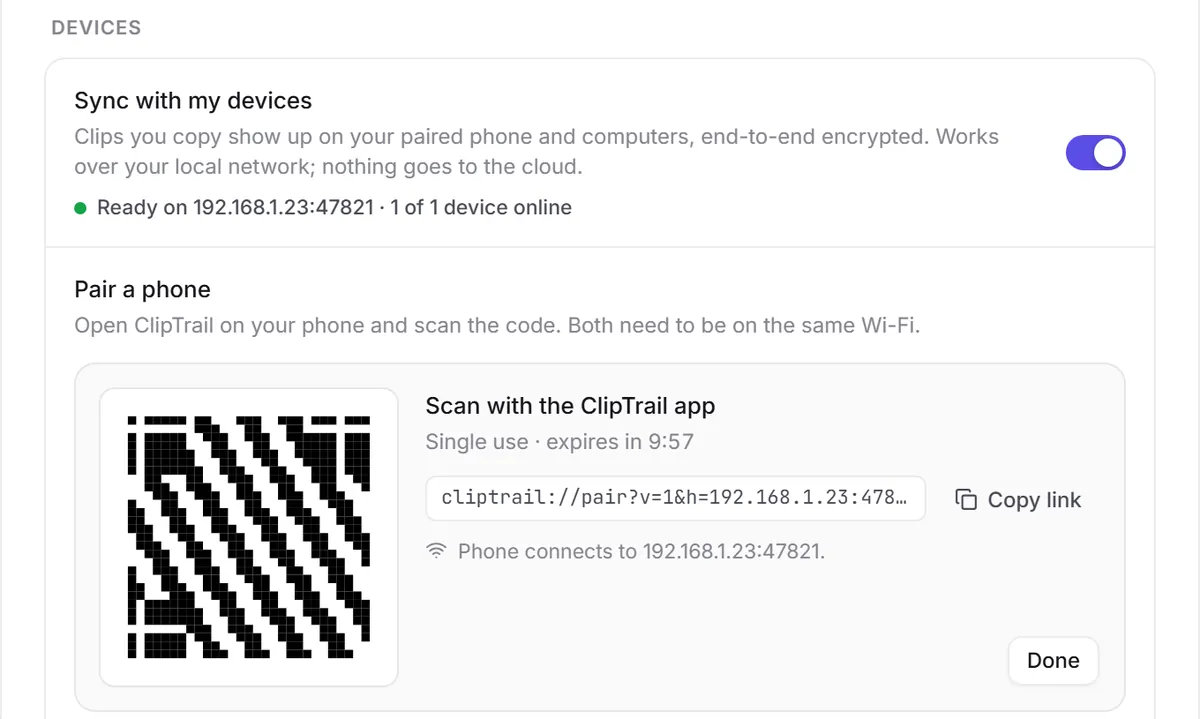
- On the hub computer, Sync with my devices is on in Settings → Devices (it's on by default). The status line should read Ready on 192.168.x.x:47821.
- Windows: the first time sync starts, Windows asks whether to let ClipTrail through the firewall. Allow it on Private networks. Your Wi-Fi should be set to Private, not Public; see firewall below.
Pair a phone
- On your computer, open Settings → Devices and click Pair a phone. A QR code appears. It works once and expires after 10 minutes.
- On your phone, open ClipTrail and scan the code. (Android setup: Android setup.)
- Both screens show a 4-digit check code. Make sure they match. If they don't, revoke the device (below) and pair again.
- Done. The phone appears in the device list with a green dot while it's online.
If nothing happens after about 20 seconds, the app suggests checking the Wi-Fi and the network profile. See sync not connecting.
Pair another computer
A computer can join another computer's hub. For now this is done with the clipd command-line tool:
- On the hub computer, open Settings → Devices → Pair a phone and click Copy link. Send the
cliptrail://pair?…link to the other computer (it's single-use and expires in 10 minutes). - On the other computer, quit ClipTrail (tray → Quit). Because the app made that computer a hub of its own on first run, reset its sync state first. Your clips are kept:
clipd sync reset clipd sync pair "cliptrail://pair?v=1&h=…" - Compare the check code it prints with the one on the hub.
- Start ClipTrail again. It now runs as a client of the hub, and its existing clips are shared with your other devices.
What syncs
| Synced | Not synced |
|---|---|
|
|
If the same clip is pinned on one device and deleted on another, the most recent change wins.
What's encrypted, and who can see what
- Your paired devices share one secret key, created on the hub and handed to each new device during pairing, encrypted for that device alone. Every clip and image is sealed with XChaCha20-Poly1305 before it leaves the device that copied it.
- The hub is your own computer and holds the key, so it decrypts clips into its own history like any of your devices.
- Anyone else on the network (another computer on the café Wi-Fi, your router) can see that two devices are talking, and per event: an event id, a device id, a timestamp and the size. Never the content. Requests are signed with HMAC-SHA256, so the device's secret token never travels.
- Pairing uses an X25519 key exchange bound to the one-time secret in the QR code. Someone on your network can't slip in their own key without seeing the QR, and pairing attempts are rate-limited.
- Keys are kept in Windows Credential Manager or the macOS Keychain; on Linux, in a file in your data folder readable only by you.
More in Privacy & security.
Firewall and network profile
The hub listens on TCP port 47821 on your local network addresses.
- Windows: when the firewall prompt appears, allow access on Private networks. If you dismissed it, open Windows Security → Firewall & network protection → Allow an app through firewall and tick Private for ClipTrail.
- Make your Wi-Fi Private: Settings → Network & internet → Wi-Fi → (your network) → Network profile type → Private network. On a Public profile Windows blocks incoming connections.
- Linux: if you run a firewall (ufw, firewalld), allow TCP 47821 from your LAN, e.g.
sudo ufw allow from 192.168.0.0/16 to any port 47821 proto tcp. - Different port: change it under Settings → Devices → Network → Port (1024–65535). Devices paired before the change may need to be paired again.
See, revoke and turn off
- Status: the sidebar shows Synced · N devices; Settings → Devices lists each device with Online now or when it was last seen.
- Revoke a device (on the hub): click Revoke, then Confirm revoke. Its access token stops working immediately and its connection is closed. Clips it already received stay on it; delete them there if needed. From a terminal:
clipd sync revoke <device-id>. - Turn sync off: switch off Sync with my devices. The hub stops and nothing listens on the network. Your history is untouched.
- Start over:
clipd sync reset(with the app closed) forgets keys, devices and sync progress for this device, keeping all clips.
Sync away from home (relay)
Devices on different networks (your phone on mobile data, the laptop at home or asleep) can sync through a relay: a small mailbox server that stores only end-to-end-encrypted events and images. It never has a key that can open them.
- Run a relay on a server you control. The self-hosting guide has a one-command Docker setup with automatic HTTPS.
- On the desktop app: Settings → Devices → Sync anywhere, paste the relay's URL (and its invite code), test it and add it. Paired devices pick it up automatically.
There is no public ClipTrail relay; you host your own.