The quick picker & paste-back
The picker is ClipTrail's fastest path: a hotkey, a few letters, Enter. The clip lands in the app you were already typing in.
Opening the picker
- Press Ctrl Shift Space anywhere. It opens centred on your screen. You can change the hotkey in Settings → Shortcuts.
- Or left-click the tray icon: the picker opens as a flyout next to it.
- Or choose Quick picker from the tray menu (right-click).
Press Esc, or click anywhere else, to close it without pasting.
Finding a clip
- Type to search. Matching is by substring, anywhere in the text, file paths or source app name, and it isn't fooled by word boundaries:
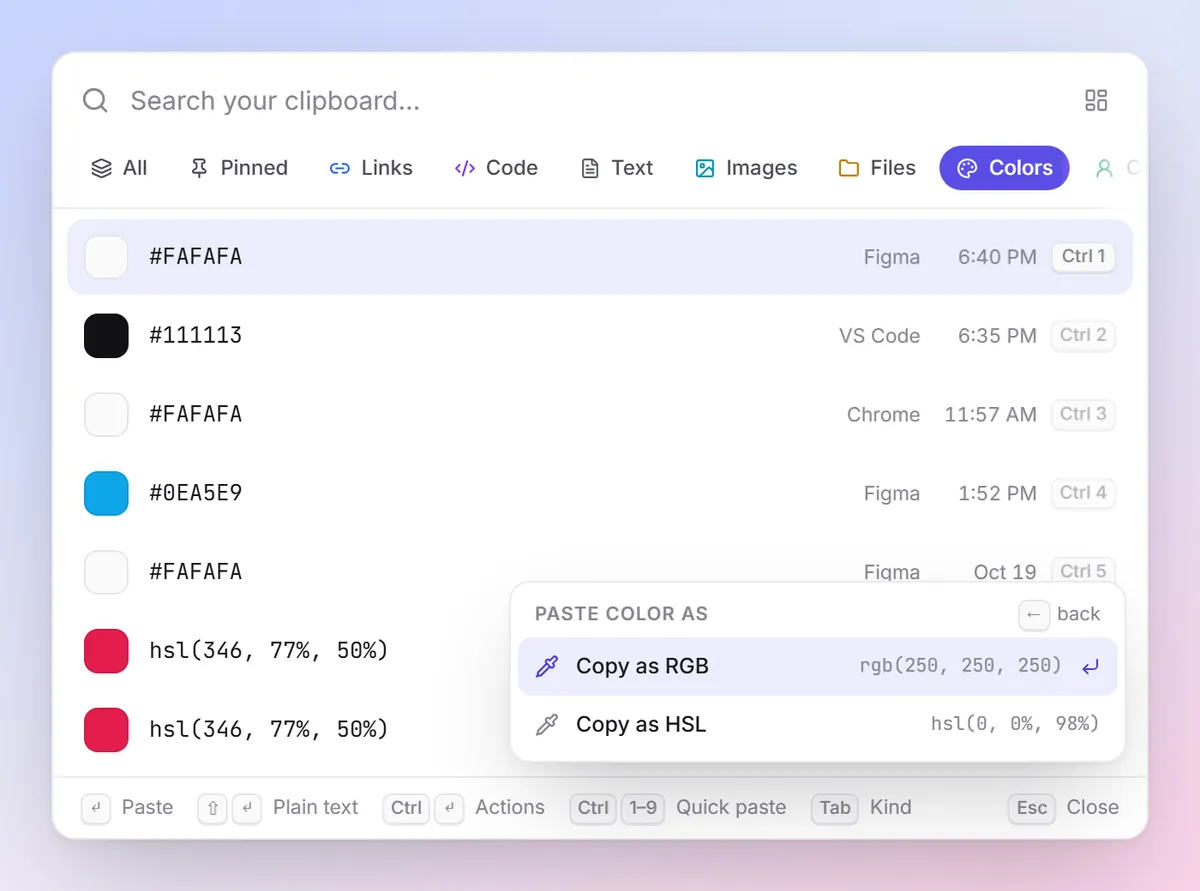
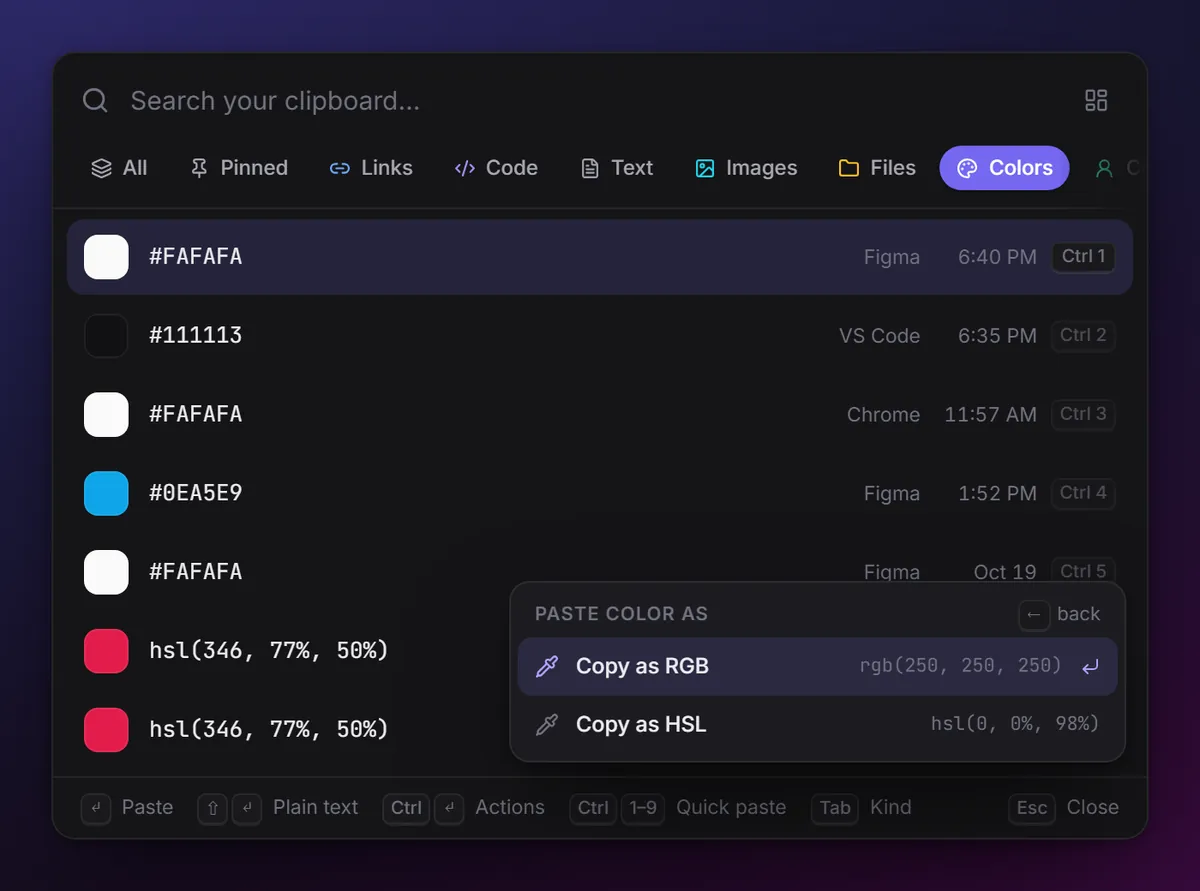
ployfindsdeploy.sh. - Switch kind with Tab and Shift Tab: All, Pinned, Links, Code, Text, Images, Files, Colors, Contacts, Sensitive.
- Move with ↑ ↓, or Page Up Page Down for bigger jumps.
- Pin the selected clip with Ctrl P so it's never cleaned up and always under Pinned.
Pasting
| Keys | What happens |
|---|---|
| Enter | Pastes the selected clip into the app you were in, keeping formatting (rich text, images, files). |
| Shift Enter | Pastes as plain text, dropping any formatting. |
| Ctrl 1 … Ctrl 9 | Pastes one of the first nine items directly; the hint is shown on each row. |
| Ctrl Enter or → | Opens the action list for the clip (clean link, copy as RGB, prettify JSON…). Pick one with ↑ ↓ and Enter to paste the result. ← or Esc goes back. |
| Ctrl D | Opens the dashboard instead. |
How paste-back works
When the picker opens, ClipTrail remembers which window had focus. When you choose a clip, it:
- puts the clip on the system clipboard,
- hides the picker and gives focus back to that window,
- sends a Ctrl V keystroke.
The clip stays on your clipboard afterwards, so if paste-back can't reach a window you can always press Ctrl V yourself.
Where paste-back can't reach
- Windows running as administrator (an elevated terminal, some installers): Windows doesn't let a normal app send keystrokes to them. Paste manually with Ctrl V, or run ClipTrail elevated too (not recommended).
- Linux on Wayland: Wayland doesn't allow apps to type into other windows, so paste-back is X11-only. On Wayland the picker copies the clip and tells you to press Ctrl V.
- Terminals that paste with Ctrl Shift V (most Linux terminals): the synthetic Ctrl V does nothing there. Press Ctrl Shift V yourself; the clip is already on the clipboard. Windows Terminal accepts Ctrl V.
- macOS: paste-back isn't implemented yet.
More fixes in Troubleshooting.